

Polishing Your Perspective: Advanced Diagram Customization
Communication is the Heart of Systems Engineering
In systems engineering, a model is only as good as its ability to communicate. While a SysML v2 tool must prioritize mathematical and logical rigor, it must also provide the tools to present those models in a way that stakeholders can understand. A dense, tangled diagram of interconnections might be technically accurate, but if it’s visually unreadable, it fails to serve its primary purpose as a communication vehicle.
SysML v2 Studio provides a suite of advanced presentation controls that go beyond basic visualization. By allowing you to control the flow, layout, and style of your diagrams, this SysML v2 IDE ensures that you can tailor your views for different audiences—whether you’re conducting a deep-dive technical audit or presenting a high-level architecture overview to management.
Fine-Tuning the Visual Flow
Our SysML v2 visualization engine offers several powerful customization options to help you untangle complex system relationships:
1. Layout Direction: Changing the Narrative
The “natural flow” of a system depends on what you are trying to emphasize. SysML v2 Studio allows you to switch between two primary directions:
- Top-to-Bottom (Standard): Ideal for hierarchical decomposition (Tree views) and showing how high-level systems break down into subsystems.
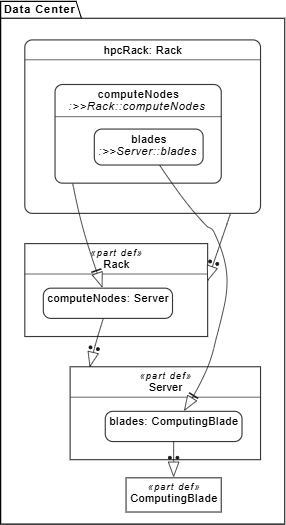
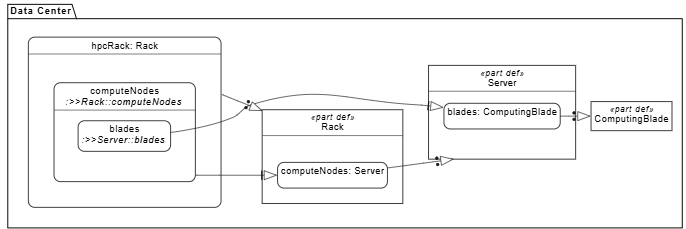
- Left-to-Right: Often preferred for process-oriented flows, sequence diagrams, or when you have a wide horizontal architecture with many parallel components.
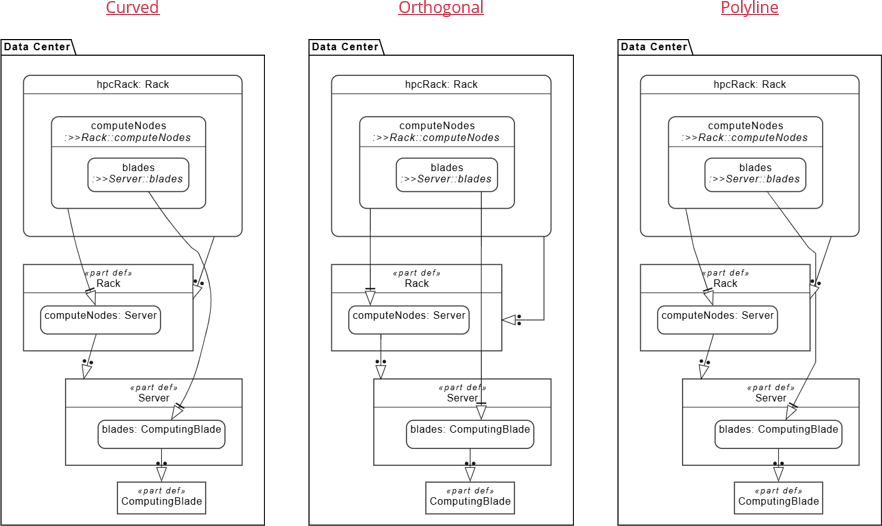
2. Line Styles: Curved vs Orthogonal vs Polyline
The “connectors” in your diagram carry a lot of visual weight. Choosing the right line style can significantly impact clarity.
3. High-Quality Exporting
A professional SysML v2 editor must be able to export its work. SysML v2 Studio allows you to capture your customized diagrams as high-resolution images. This is essential for including your system visualizations in external documentation, slide decks, or technical reports.
Step-by-Step Tutorial: Customizing a Complex Architecture View
In this tutorial, you will take a highly interconnected model and use layout and styling controls to improve its readability.
- Open the Interconnection Example: In the Examples pane, open
Training > 011. Connections > 06. Hospital Gas Delivery.sysml.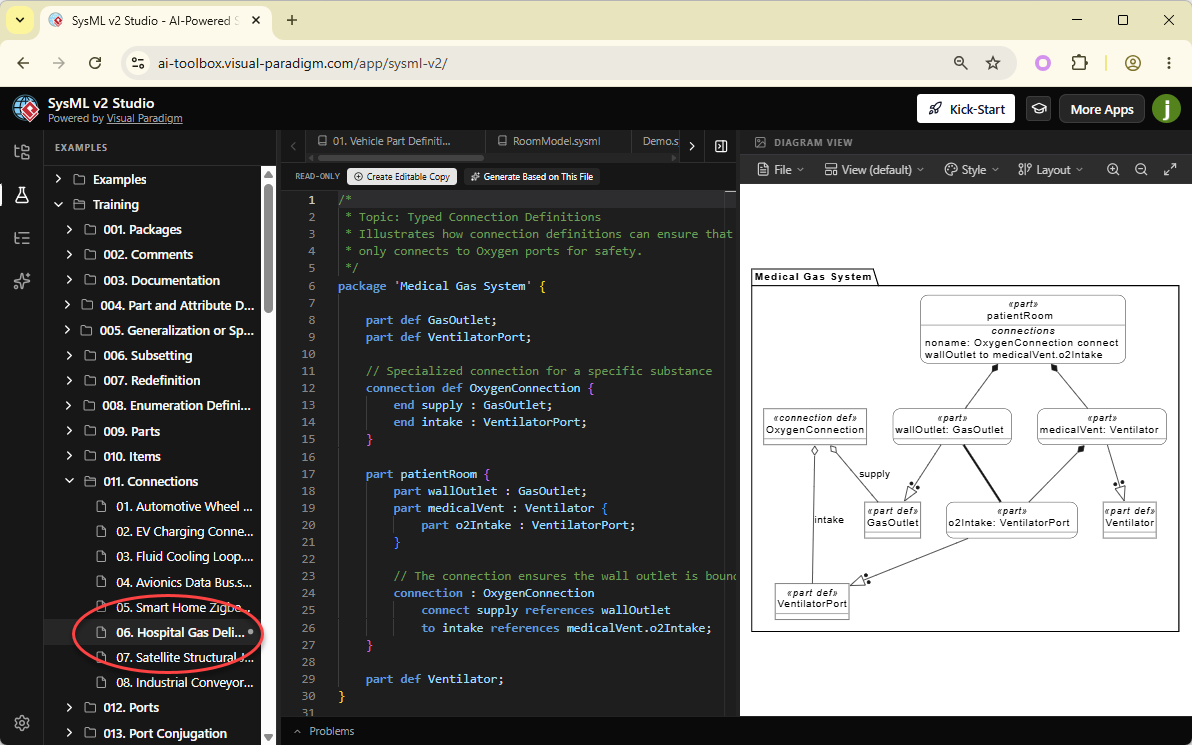
- Toggle Line Style: On top of the diagram viewer, select Layout > Line Style > Orthogonal.
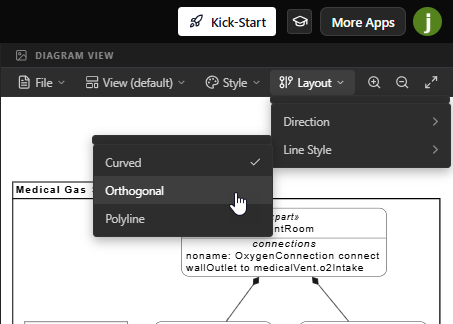
Observe the change in connectors.
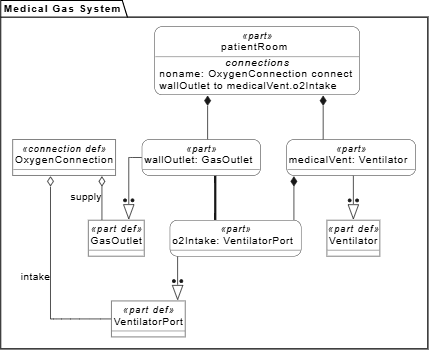
- Change Layout Direction: Select Layout > Direction, and switch it to Left to right.
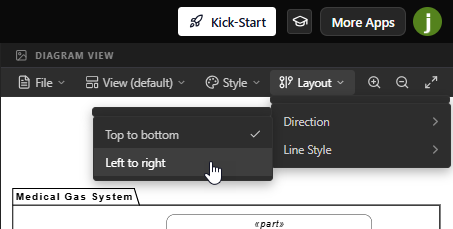
Watch as the system architecture re-orients itself.
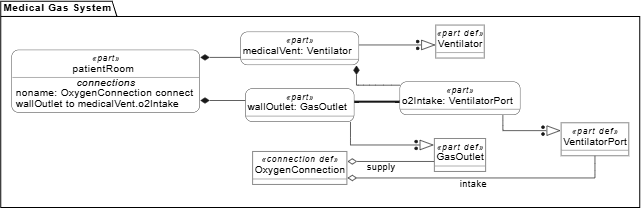
- Adjust Zoom and Pan: Use your mouse wheel to zoom in on a specific port. Notice how the labels remain crisp. Use the left mouse button (or right button, depending on your pan settings) to drag the canvas around. A professional SysML v2 tool ensures that even the largest diagrams are easy to navigate.
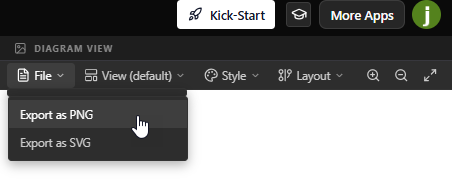
- Capture for Export: Once the diagram looks perfect, select File > Export as PNG to output an image from the viewer.
What You’ve Learned
By exploring advanced customization, you’ve learned how to turn a technical model into a professional presentation. You now know:
- How to use **Layout Direction** to change the narrative of your system’s flow.
- The visual benefits of **Orthogonal** line styles in reducing diagram complexity.
- How to navigate and export your visualizations for use in the real world.
You have now mastered the core lifecycle of SysML v2 Studio: from learning with examples to editing with AI, and finally, visual presentation. In our final chapter, we will wrap up your journey and look at how to leverage the integrated Learning Center for your continued growth as a systems engineer.
