

Jumpstart Your Projects: From Example to Editable Model
Unlocking the Power of Examples
In the previous chapters, we explored how the Examples library serves as a Read-Only reference for learning SysML v2 syntax. While studying these “Master Copies” is valuable, the true power of SysML v2 Studio is unlocked when you take those blueprints and turn them into your own living projects.
Instead of starting with an empty file and fighting the “blank page” problem, you can transform any reference model into a private, editable project in your personal cloud workspace. This “Clone-and-Modify” workflow allows you to skip the tedious setup and jump straight into the creative engineering work.
The Transition: Read-Only vs. Editable
To keep the workspace organized, SysML v2 Studio clearly separates References from Projects:
- The Examples Tab (Read-Only): Contains the curated library. Files opened from here are protected and cannot be edited. They serve as your constant, reliable reference.
- The Navigator Tab (Editable): This is your personal sandbox. Any file you create here, or any copy you make from the examples, is fully editable. This is where you build your own system architecture.
Why Use “Create Editable Copy”?
By using the “Create Editable Copy” feature, you are essentially “checking out” a file from the library into your personal Navigator. This removes the “READ-ONLY” protection and gives you full control over the code, the attributes, and the diagrams.
Step-by-Step Tutorial: Unlocking Your First Example
In this tutorial, you will move a file from the protected library into your private workspace.
- Select Your Starting Point: Open the Examples tab. Navigate to
Training > 004. Part and Attribute Definition > 01. Vehicle structure.sysml. Confirm you see the READ-ONLY indicator.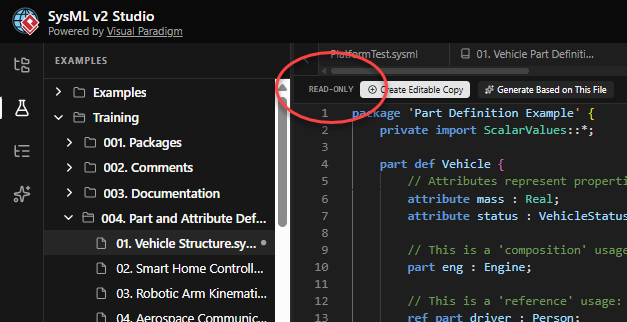
- Initiate the “Unlock”: Look at the toolbar at the top of the editor. Click the button labeled “Create Editable Copy”.
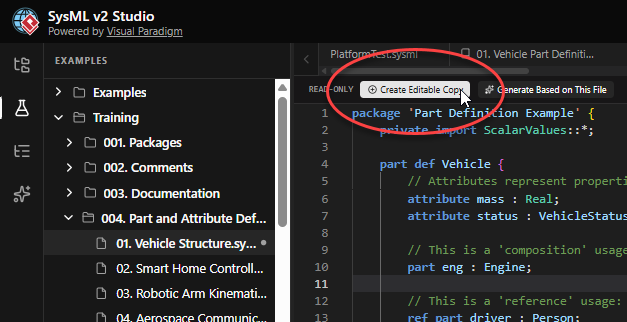
- Observe the Platform Shift: Notice two things have changed:
- The studio automatically switches you from the Examples tab to the Navigator tab.
- A new file is created and the READ-ONLY label has disappeared.
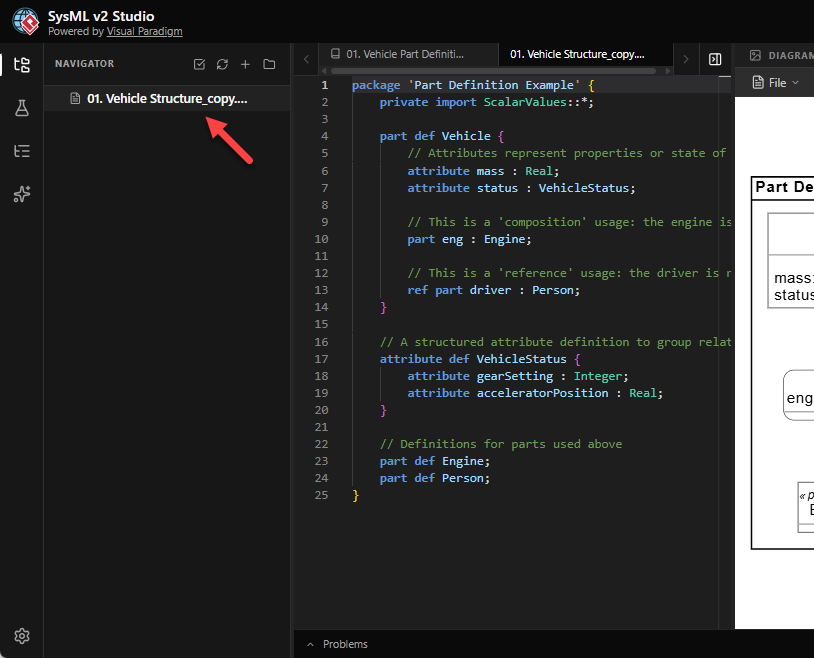
- Verify Editability: You are now in your personal sandbox. Try changing a component name or adding a new part definition. You will see the code update smoothly, and the diagram will instantly reflect your new design.
What You’ve Learned
- The difference between **Read-Only References** in the Examples tab and **Editable Projects** in the Navigator.
- How to use the **”Create Editable Copy”** button to “unlock” any library model for your own use.
- The seamless transition between learning from a master copy and building your own private architecture in the cloud.
You have now mastered the workflow of starting a project with confidence. But what if your project needs a completely unique starting point? In the next chapter, we will see how AI can generate a custom model for you from scratch.
