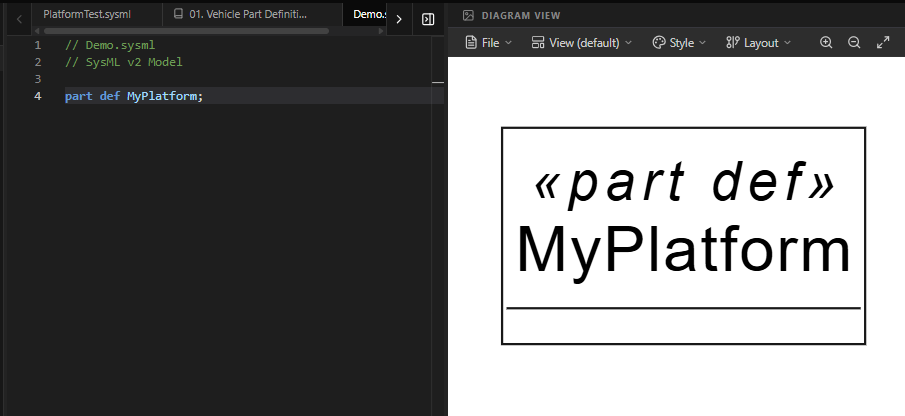
Mastering the Workspace: Your Command Center for SysML v2
The Frictionless Modeling Environment
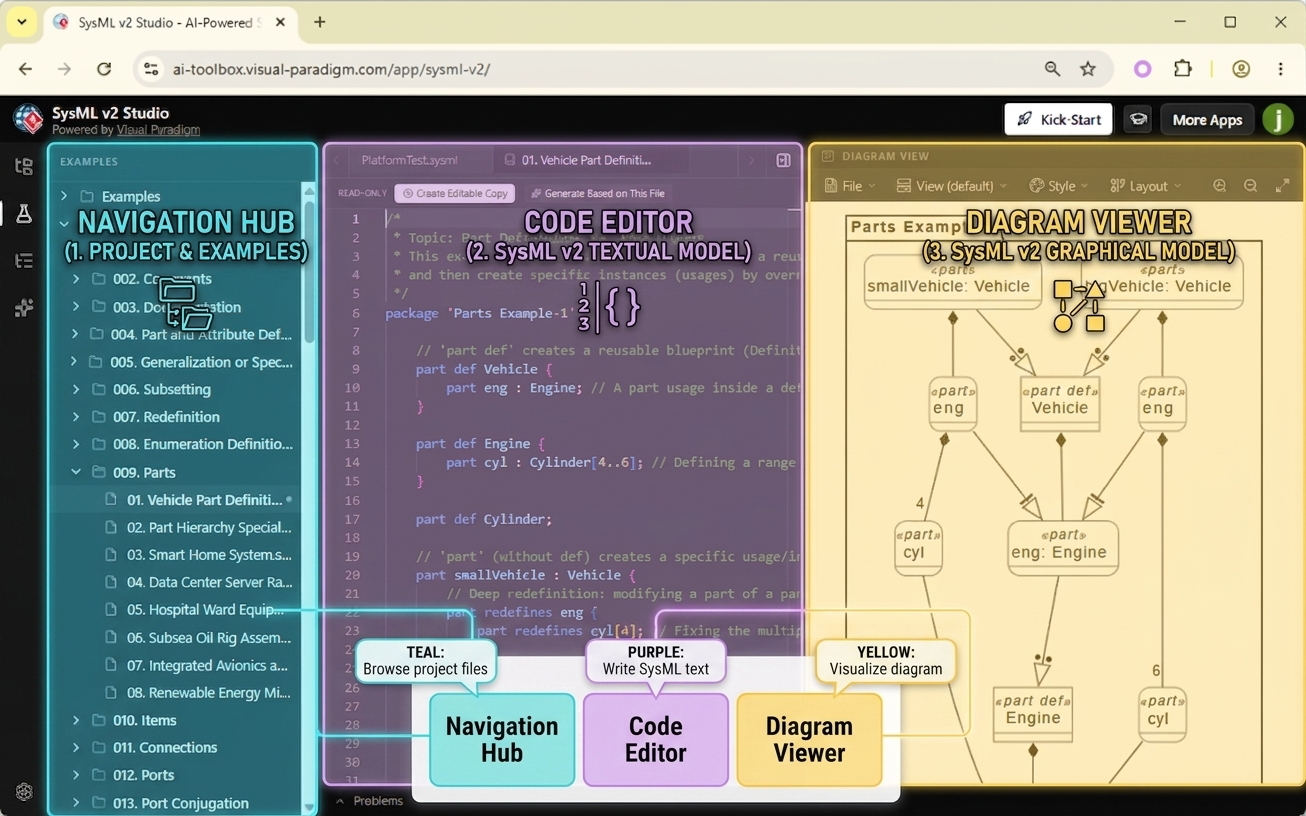
SysML v2 Studio was engineered with a “three-pane” philosophy to eliminate friction. By separating navigation, creation, and visualization into dedicated zones, this SysML v2 editor ensures that you stay focused on the system architecture. Whether you are browsing a massive library of examples or debugging a complex part hierarchy, everything you need is exactly where you expect it to be.
Anatomy of the SysML v2 Studio
1. The Left Pane: The Navigation Hub
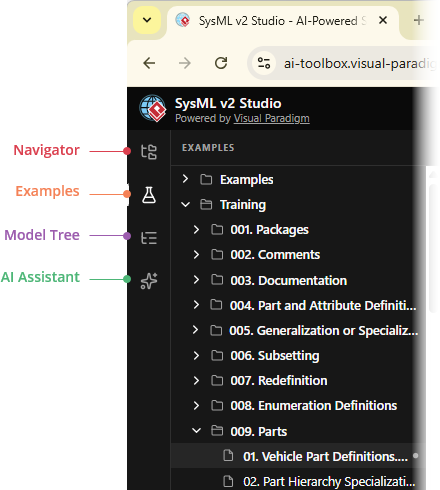
- Navigator: Your cloud-based file manager for your private, editable projects.
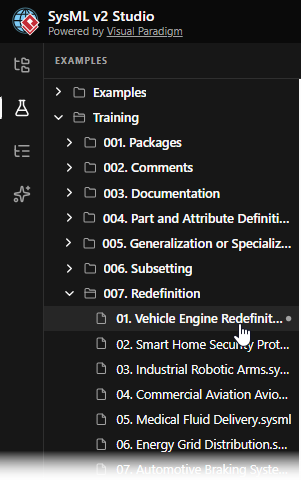
- Examples: A massive repository of hundreds of Read-Only reference models.
- Model Tree: Provides a structural skeleton of the active file for quick navigation.
- AI Assistant: Your partner for generating code and analytical reports.
2. The Center Pane: The High-Performance Editor
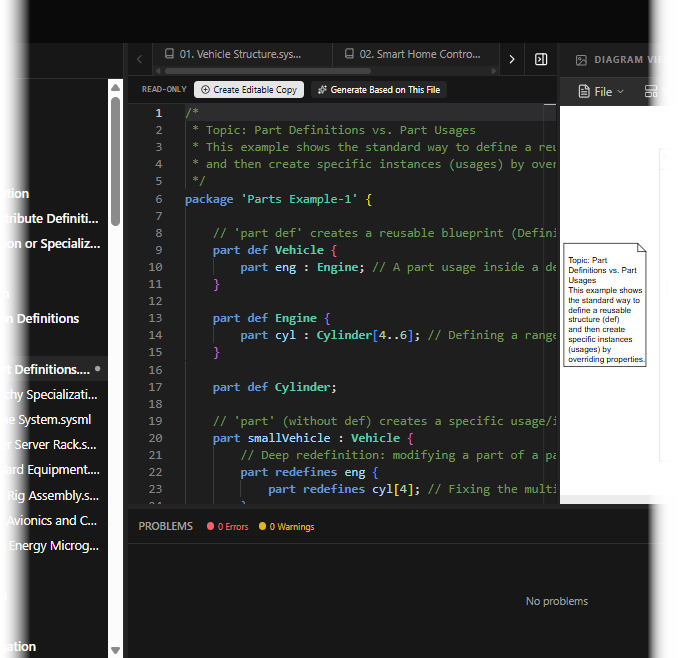
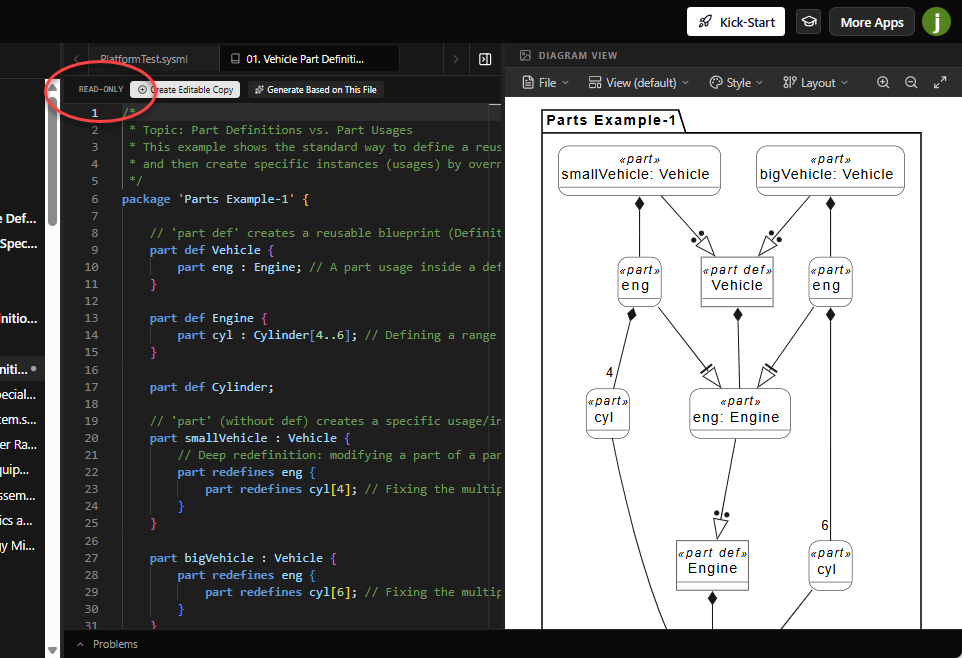
This is where your modeling happens. A key feature to notice is the Status Toolbar at the top of the editor. When you open a file from the Examples library, you will see a “READ-ONLY” indicator. This tells you that the file is a protected reference. To edit it, you must first create your own copy (covered in Chapter 5).
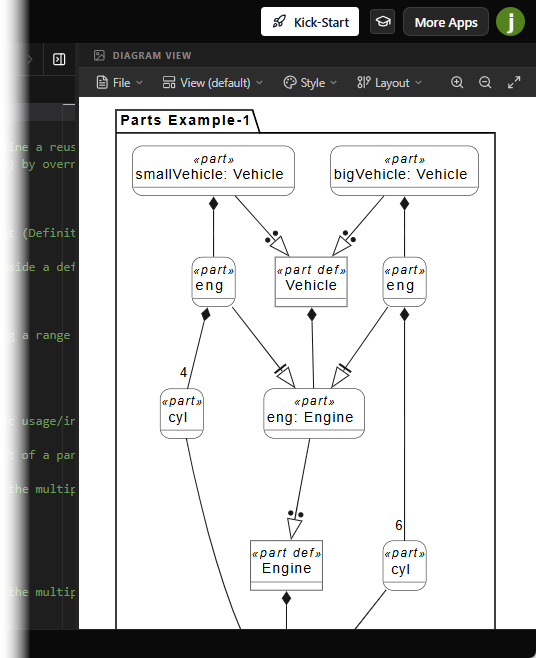
3. The Right Pane: The Diagram Viewer
Provides live, interactive visualization of your code with multiple View Modes (Tree, Interconnection, Case, etc.).
Step-by-Step Tutorial: Identifying File Status
- Open a Reference: Go to the Examples tab and open any file.
- Spot the Indicator: Look at the toolbar just above the code. Notice the READ-ONLY label. Try to type in the editor—you’ll find that the text is protected to ensure the example stays pristine.
- Open a Personal File: Switch to the Navigator tab and create a file (with Alt+N).
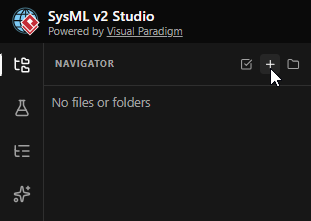
Notice that the “READ-ONLY” label is gone, and you can now type and edit freely.